

Free
Download the package from the manager of your site.
How to download?
How to download?

The author
Баха
Packages
6 Downloads
1 600 


Every time you need to change a couple of settings, the same thing happens: pick a namespace in one filter, pick an area in a second filter, page through the pager, double-click the «Value» cell, miss, click again, type the value, press Enter and wait for the row to save. Then the next one. And the setting's description hides behind a plus sign you have to click as well.
EasySettings shows the same settings as a form: name, description and key on the left, a field of the right type on the right. Change as many values as you like and save them all in one press.
The page URL, the menu item and the permissions stay the same, and the page does not look out of place: the same tabs, buttons, windows and colours as MODX 3 or MODX 2.
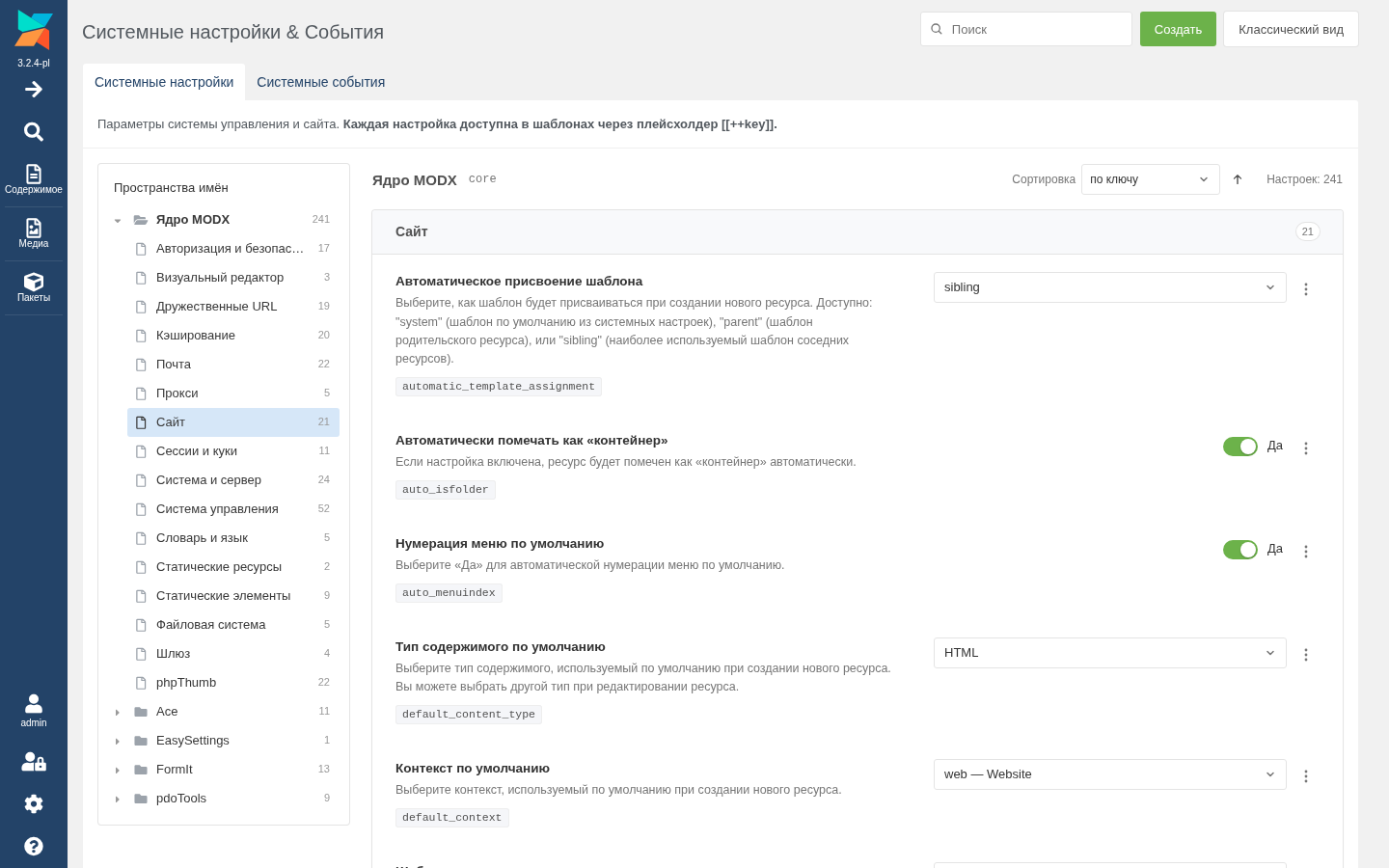
Every setting is a row, the field is editable straight away and matches the type: a Yes/No toggle, a number, a password with a «Show» button, JSON with validation, a textarea that grows. Core combo boxes become a list with the same options; third-party settings with their own xtype are rendered by their own ExtJS component.
Core text settings that really have a fixed set of values — log_level, link_tag_scheme, friendly_alias_translit and others — are shown as lists too. No more opening the docs to recall whether it was abs or full.
On the left is a MODX-style tree of namespaces and areas. An area opens as its own page with its own URL (&ns=core&area=site): Back and Forward work, the link opens in a new tab, and unsaved edits survive navigation. Expanded folders and tree scrolling are remembered between loads.
An area's settings load when you open it, so on a site with thirty extras the page opens as fast as on a clean install.
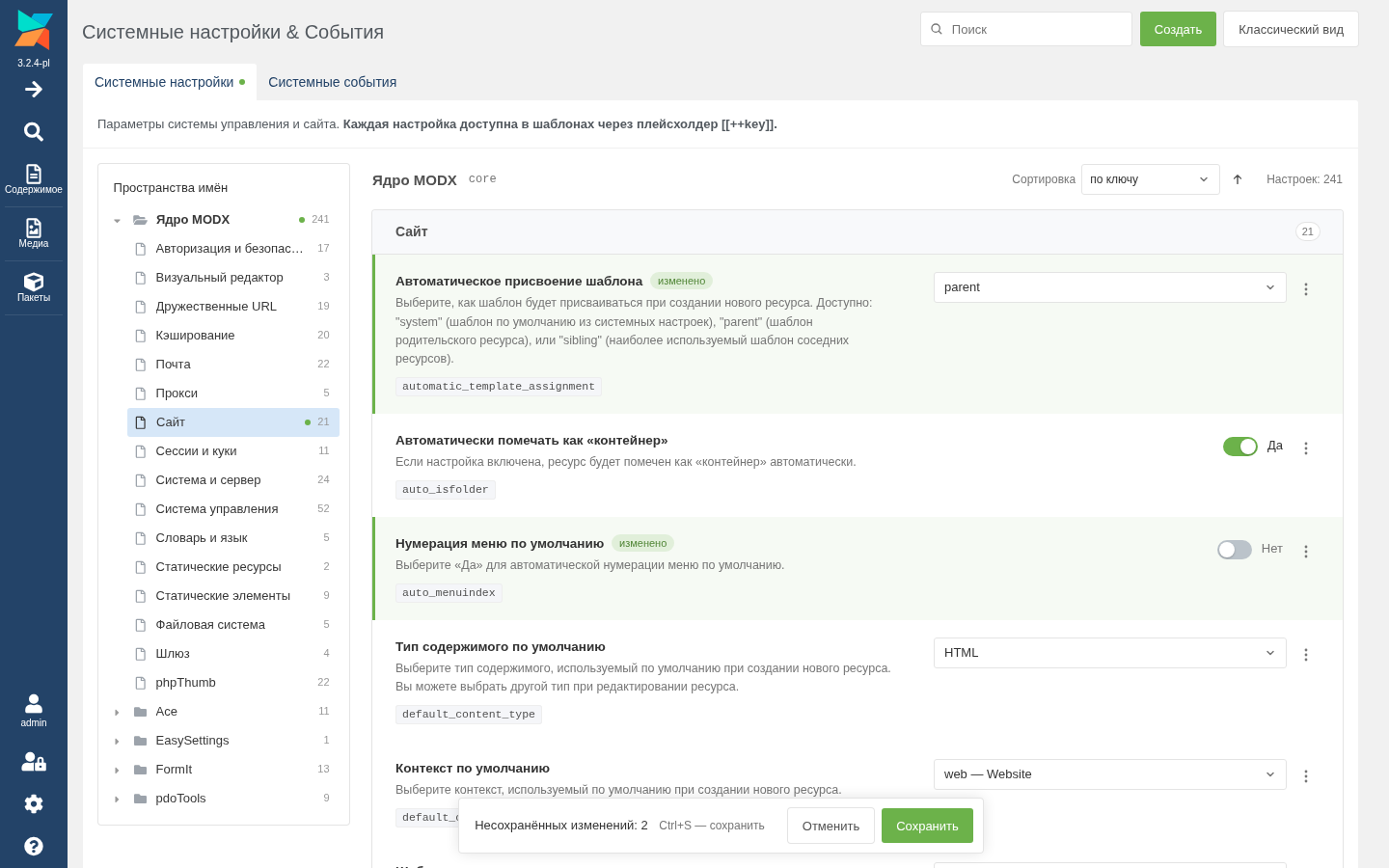
Changed rows are marked and a «Cancel» / «Save» bar appears at the bottom. Or Ctrl+S, which works in any keyboard layout. Leaving the page with unsaved edits asks for confirmation.
Each setting is saved by a core processor, so all of the MODX logic still runs: config reload, URI recalculation when friendly_urls changes, permission checks. If one setting fails to save, the rest still save.
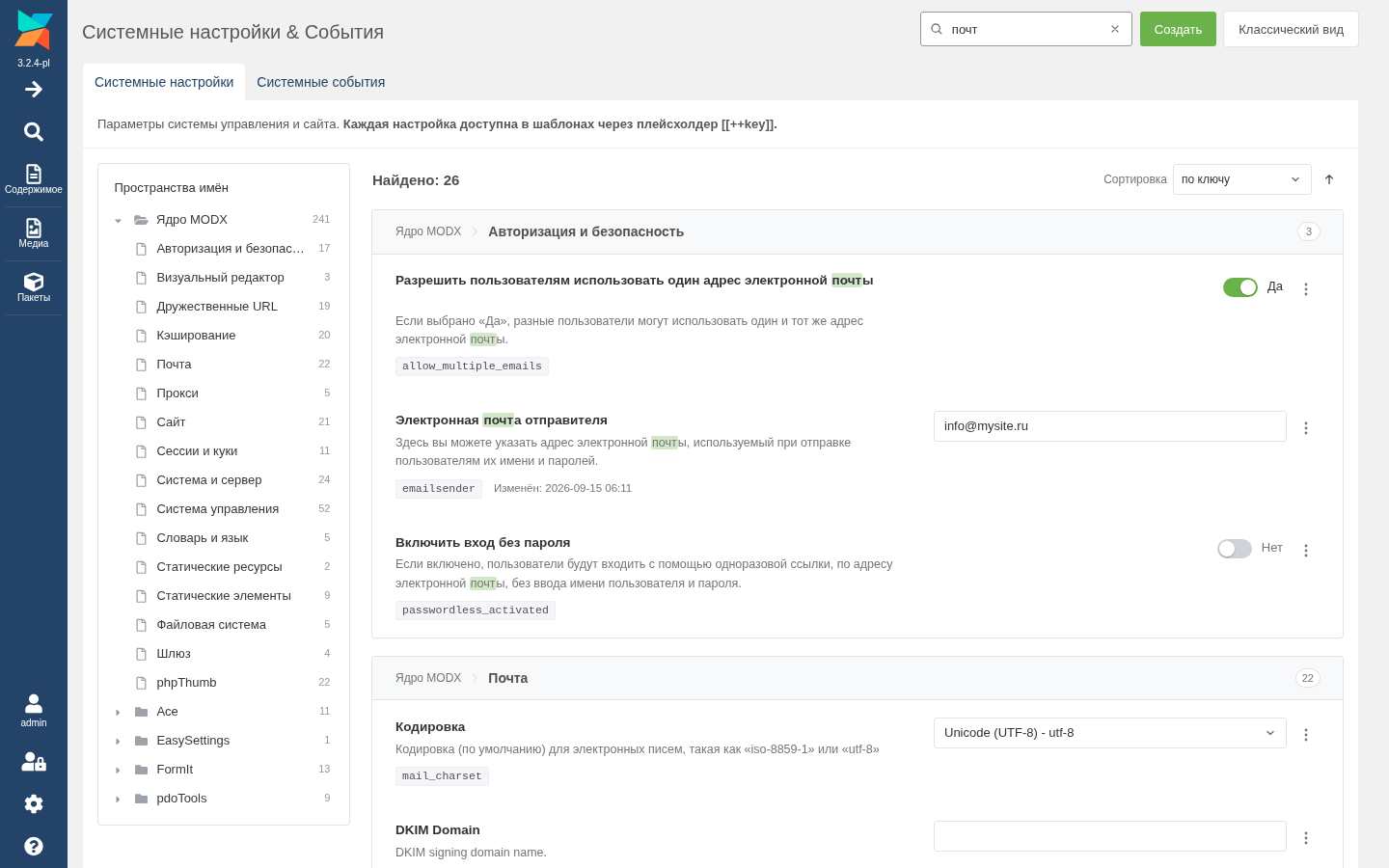
By name, key, description and value, across every namespace at once, with matches highlighted. It also finds translations from lexicon files, which core search does not see. Press / or Ctrl+K to jump into the search field.
Sorting by key, name or modification date — handy when you need to recall what exactly you changed last week.
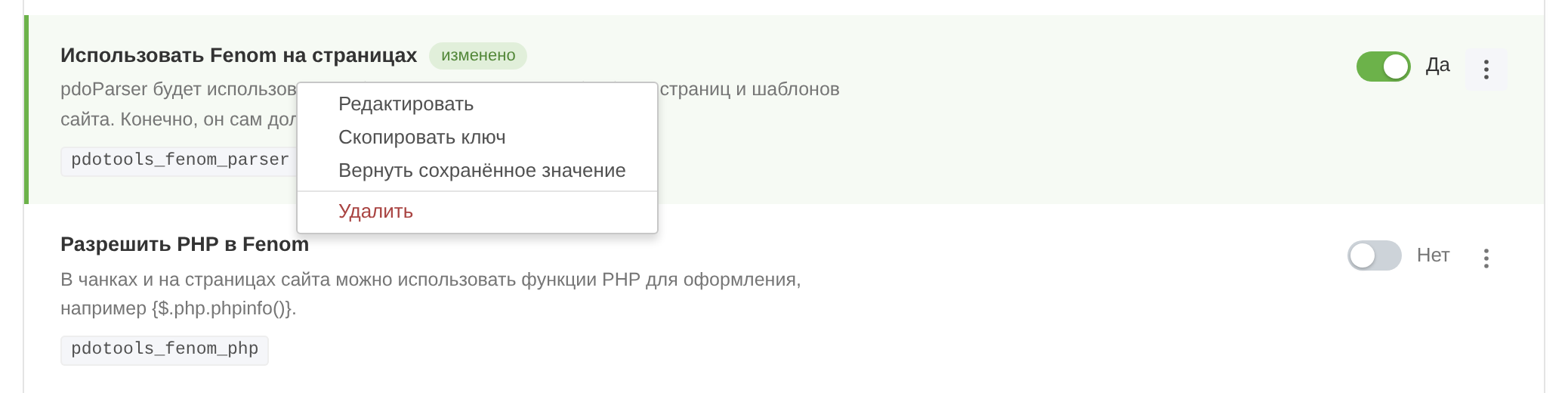
On a row it opens a menu just like a MODX grid: Edit, Copy key, Revert to saved value, Delete. Right-clicking an input leaves the browser menu alone — you still need to paste from the clipboard.
The edit window changes everything: field type, namespace, area, name, description and value. Name and description are written into the lexicon in the manager's language, and only when they were actually changed.
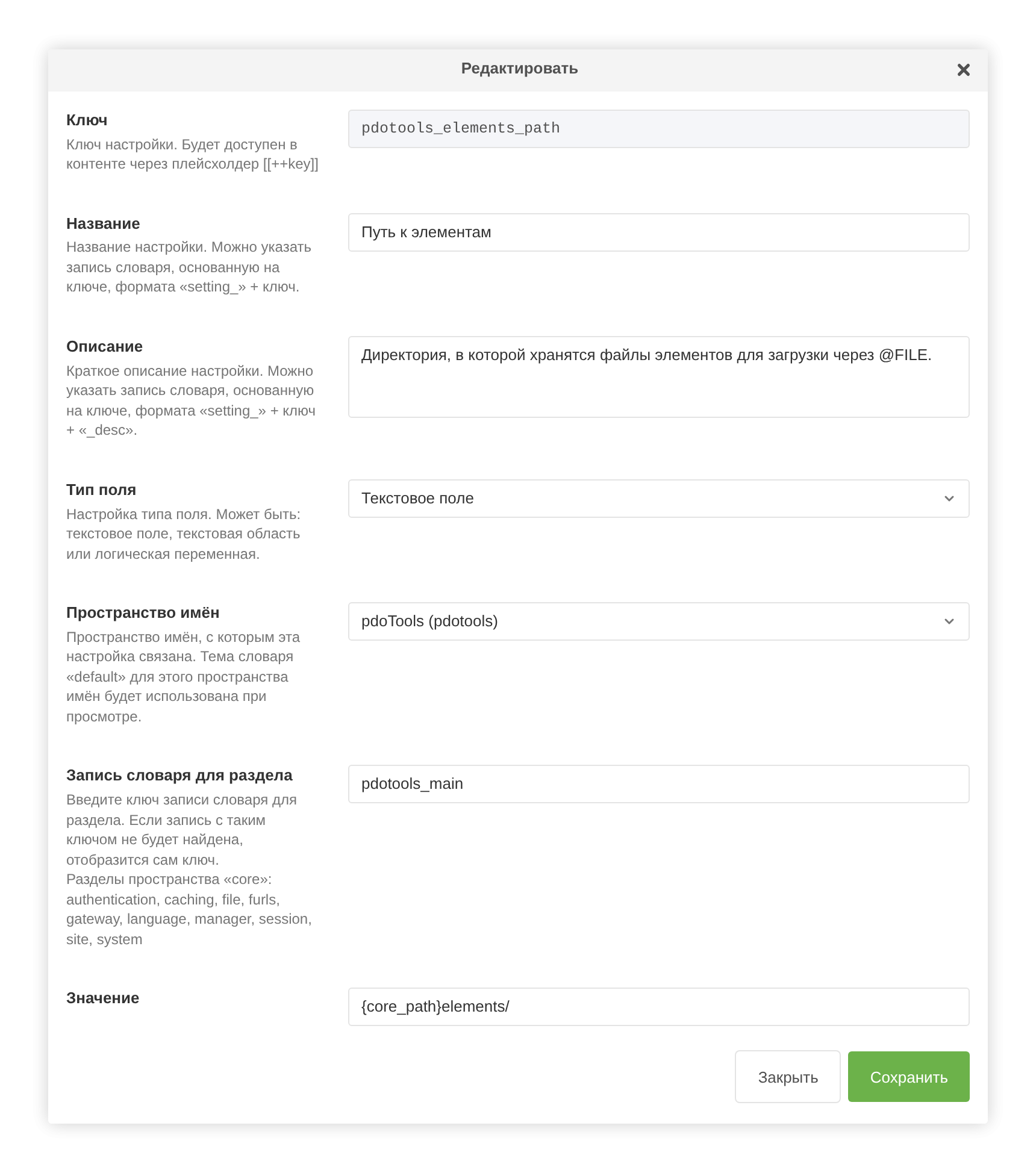
Events by group with the plugins attached to them, search, and sorting by plugin count. Custom events can be created and deleted; core events, as before, cannot.
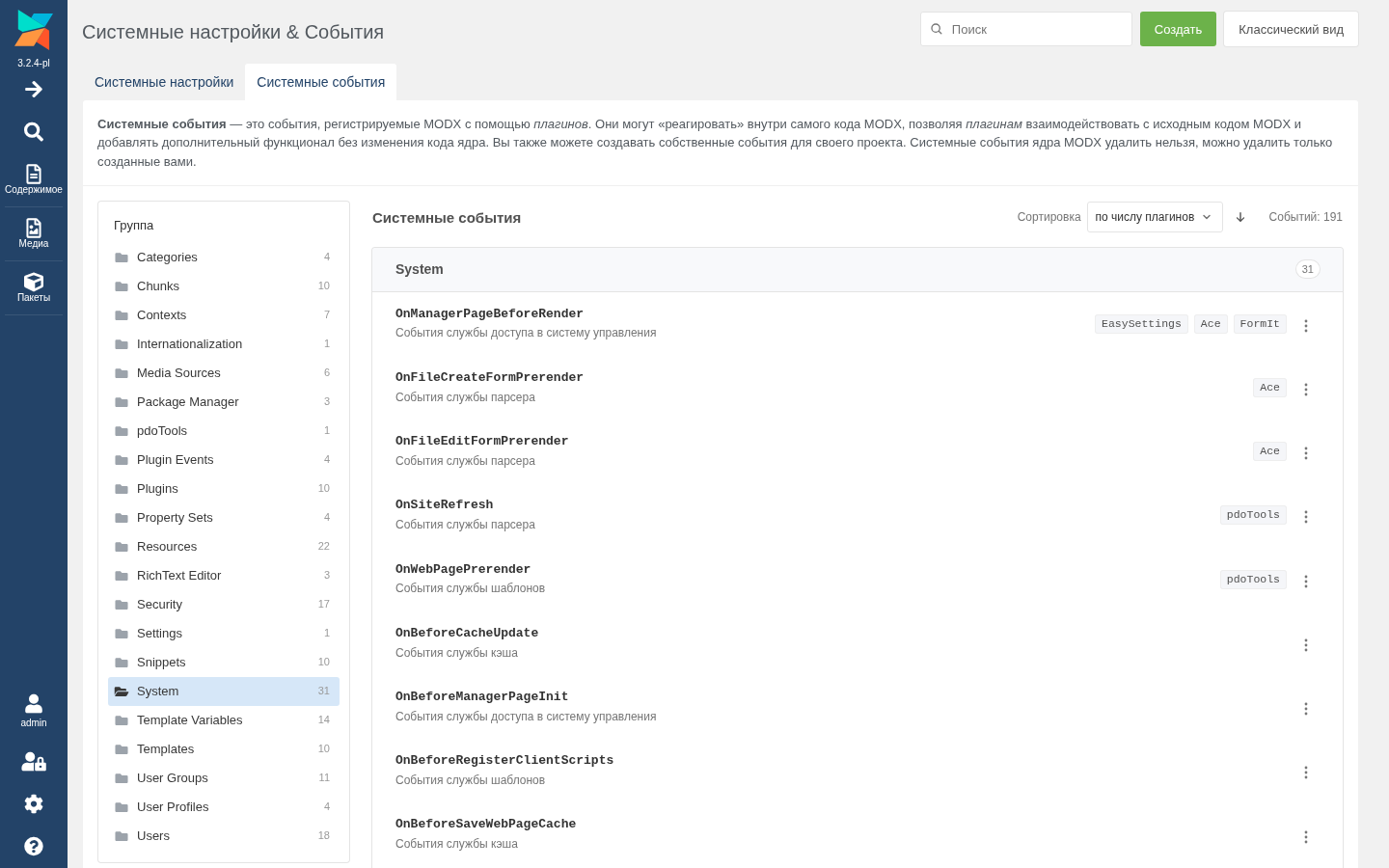
The «Classic view» button opens the stock grid, and there — next to Help! — a «Convenient view» button appears to bring you back. The component can be switched off entirely with the easysettings.enabled setting.
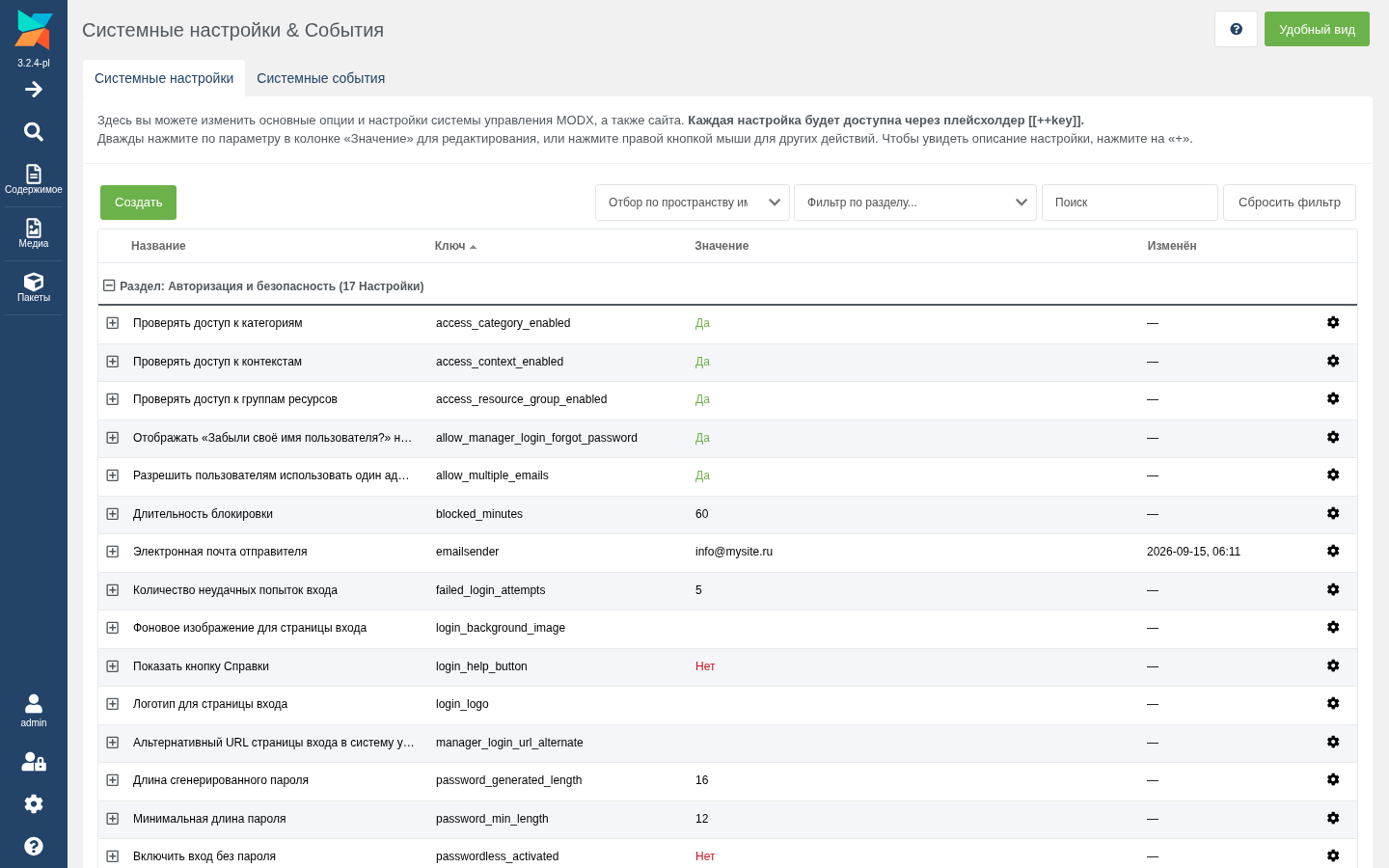
The interface is written in Svelte. ExtJS appears only where nothing else will do: third-party fields with their own xtype are rendered by their own components, and confirmations and notifications use the manager's own windows. The interface bundle is about 160 KB, under 50 KB gzipped over the wire.
Interface strings come from the MODX lexicon in the manager's language; the component's own strings are translated into English, Russian and Tajik.
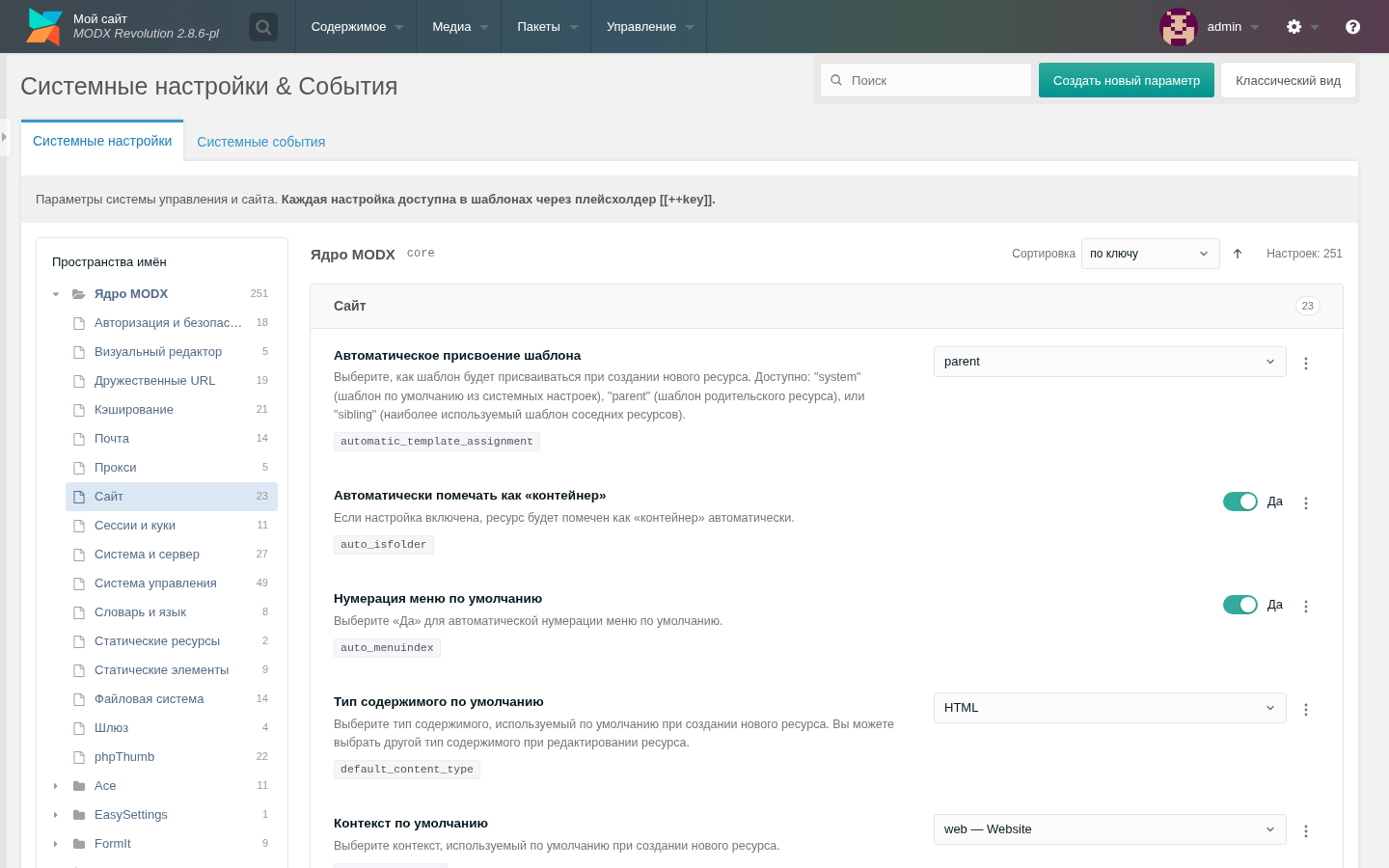
EasySettings shows the same settings as a form: name, description and key on the left, a field of the right type on the right. Change as many values as you like and save them all in one press.
The page URL, the menu item and the permissions stay the same, and the page does not look out of place: the same tabs, buttons, windows and colours as MODX 3 or MODX 2.
No more double-clicking
Every setting is a row, the field is editable straight away and matches the type: a Yes/No toggle, a number, a password with a «Show» button, JSON with validation, a textarea that grows. Core combo boxes become a list with the same options; third-party settings with their own xtype are rendered by their own ExtJS component.
Core text settings that really have a fixed set of values — log_level, link_tag_scheme, friendly_alias_translit and others — are shown as lists too. No more opening the docs to recall whether it was abs or full.
A whole area, no pagination
On the left is a MODX-style tree of namespaces and areas. An area opens as its own page with its own URL (&ns=core&area=site): Back and Forward work, the link opens in a new tab, and unsaved edits survive navigation. Expanded folders and tree scrolling are remembered between loads.
An area's settings load when you open it, so on a site with thirty extras the page opens as fast as on a clean install.
Batch saving
Changed rows are marked and a «Cancel» / «Save» bar appears at the bottom. Or Ctrl+S, which works in any keyboard layout. Leaving the page with unsaved edits asks for confirmation.
Each setting is saved by a core processor, so all of the MODX logic still runs: config reload, URI recalculation when friendly_urls changes, permission checks. If one setting fails to save, the rest still save.
Search that finds more than the core one
By name, key, description and value, across every namespace at once, with matches highlighted. It also finds translations from lexicon files, which core search does not see. Press / or Ctrl+K to jump into the search field.
Sorting by key, name or modification date — handy when you need to recall what exactly you changed last week.
Right-click is still there
On a row it opens a menu just like a MODX grid: Edit, Copy key, Revert to saved value, Delete. Right-clicking an input leaves the browser menu alone — you still need to paste from the clipboard.
The edit window changes everything: field type, namespace, area, name, description and value. Name and description are written into the lexicon in the manager's language, and only when they were actually changed.
System Events tab
Events by group with the plugins attached to them, search, and sorting by plugin count. Custom events can be created and deleted; core events, as before, cannot.
If you want the old way back
The «Classic view» button opens the stock grid, and there — next to Help! — a «Convenient view» button appears to bring you back. The component can be switched off entirely with the easysettings.enabled setting.
About ExtJS
The interface is written in Svelte. ExtJS appears only where nothing else will do: third-party fields with their own xtype are rendered by their own components, and confirmations and notifications use the manager's own windows. The interface bundle is about 160 KB, under 50 KB gzipped over the wire.
Interface strings come from the MODX lexicon in the manager's language; the component's own strings are translated into English, Russian and Tajik.
EasySettings 1.0.0-pl
- The order of rows in a card is chosen next to its counter: settings by key, name or date changed, events by name or number of plugins; the arrow beside it flips the direction. Settings that were never changed come last when sorting by date. For that the settings list returns the date changed as a Unix time (edited), which the core sends already formatted.
- A right click on a setting or an event opens the same menu as the "⋯" button, like the context menu of a MODX grid. Input fields keep the browser's own menu, with Paste.
- Buttons react to hover like the manager's: in MODX 3 only the background fades, in MODX 2 the change is instant.
- The close button of a window stays centred at any browser zoom.
- Escape closes the row menu and windows again.
- The row menu looks and behaves like the manager's x-menu, the same as in EasyFavicon, EasyCookies and modSizeControl: it opens flush under its button, arrow keys walk the items, and a menu opened from the keyboard focuses the first one.
- The page buttons realign after the manager tree is collapsed or expanded: Ext changes the width of the centre panel and its position in two steps, and the buttons used to end up past the right edge.
EasySettings 1.0.0-beta1
- First release.
- Replaces the System Settings page (?a=system/settings) with a Svelte interface: settings grouped by namespace and area, name and description on the left, the field on the right.
- Settings and Events tabs, like the standard page.
- MODX-style tree on the left; an area opens as its own page with its own URL and browser history, without a reload and without losing unsaved changes.
- The tree scrolls on its own, sized to the visible area: opening an area no longer carries it up with the page. Expanded folders and the scroll position are remembered in the browser.
- Settings load by area instead of all at once: the tree with counts is one light request, the settings of an area come when it is opened. Sites with dozens of Extras no longer pull megabytes on every visit.
- Server-side search across every namespace by name, key, description and value; it also finds translations from lexicon files, which the core search misses.
- Changing manager_language reloads the page so the interface comes in the new language.
- Editing a setting as a whole: field type, namespace, area, name, description, value. Translations are written for the manager language and only when changed.
- Events: grouped list with their plugins, creating and removing user-defined events.
- Core text settings with a known set of values (log_level, link_tag_scheme...) are shown as a dropdown.
- Interface strings come from the MODX lexicon in the manager language; own entries only where the core has none.
- Own strings in English, Russian and Tajik (tg).
- Batch saving with an unsaved-changes bar and Ctrl+S (in any keyboard layout); reads and writes go through the core processors, so cache refresh and URI rebuilding work as usual.
- Native controls for text, numbers, passwords, Yes/No and the core combos; settings with third-party xtypes are edited with the manager's own component.
- Creating and removing settings.
- The palette follows the manager: MODX 3 green or MODX 2 teal.
- The classic grid stays available at ?a=system/settings&classic=1, with an "Easy view" button next to Help! to come back.
- One code base for MODX 2.8+ and MODX 3.x.